
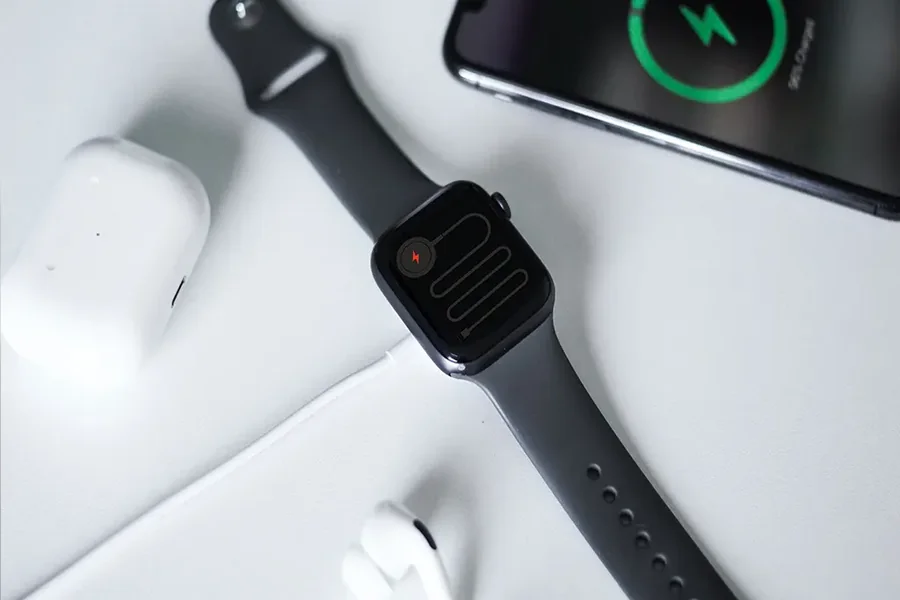
There is nothing more irritating than when you wake up in the morning and you want to check your Apple Watch only to realize that it was not charged at night. Your Watch will not show a charging indicator at all, charge ridiculously slowly, stop at some particular percentage, or simply not respond to being placed on the charger, there are various options and the majority of them have one-liner solutions. This is a step-by-step troubleshooting guide on why your Apple Watch will not charge and includes the most common causes of this issue and solutions that you can attempt to use before visiting an Apple Store.
Understanding How Apple Watch Charging Works
Apple Watch is charged by a magnetic inductive system. The Watch is charged wirelessly using a circular magnetic charger that has a concave surface which fits on the flat back of the Watch. No pins, no ports to plug in, it is possible to say that the most common failure points are not the same as in the case of traditional cable charging. The charger should be correctly positioned and the charging surface should be clean and both the charger and the adapter are to be in good working condition. Any break in this chain may preclude charging.
Common Reasons Your Apple Watch Is Not Charging
The charging device is not correctly oriented. Even the slight misalignment can ensure that the magnetic connection is not formed. The Watch back should be flat against the concave part of the charger and the magnets will make them stick together when they are in position. When you hear the faint chime and the charging screen indicator is displayed, you are connected.
Its charging cable or adapter is defective. Apple Watch charging cables, similar to any cable, are prone to wear and tear. Fraying, internal wire, kinking or internal wire damage may cause the power to be interrupted without external sign of damage. The USB power adapter too may fail with the course of time or may not provide sufficient wattage to charge the Watch.
Contacts of the charger are dirty. The back of the Watch, as well as the surface of the charger, can be filled with dust, residual sweat, and skin oils and debris, which forms a barrier and hinders the effectiveness of inductive charging. This is one of the most common and most easily overlooked causes.
The Watch requires soft reset. Sometimes software problems can result in the Watch no longer responding to charge. An unresponsive or frozen Watch may fail to recognize the connection of charging even in the cases when it is physically attached.
There has been a decline in battery health. Similar to any other lithium-ion battery, the Apple Watch battery deteriorates with age and charge cycles. A battery with significant capacity loss can charge at a very slow rate or not charge at all, or apparently not charge at all, when it is in fact charging at an incredibly slow rate.
The charger is not an Apple-approved product. Third-party chargers that are not certified by Apple as MFi might fail to charge the Watch at all, or not charge it reliably. A few are aftermarket chargers, which are okay, but quite a number fail to comply with technical specifications.
WatchOS software bugs. At times, a software update may cause charging related problems. Apple usually fixes such within the following updates, though in case your Watch has ceased to charge following a software update, this could be the problem.
Step-by-Step Troubleshooting Guide
Step One: Verify the alignment of the charging.
Then put the Watch again flat on the charger surface, and leave the magnets to work on it. Do not force it. Provided you have a Watch in a case or a thick band that does not allow proper contact, remove it and re-try. Make sure that the Watch is lying in a natural position as opposed to resting at an angle.
Step Two: Clean charging contacts
Wipe the back of the Watch and the surface of the charger with a clean and dry lint-free cloth. In case of the presence of residue, you can moisten the cloth slightly using water, but not alcohol and harsh cleaners. Make sure that both surfaces are dry before trying to recharge.
Step Three: Try a different power source and cable
Insert your charger into another USB wall adapter, USB port on your computer or another power outlet. In case you have access to any other Apple Watch charging cable, replace it and check whether the issue has been eliminated. This assists in isolating the problem either in the cable, the adapter or the source of power.
Step Four: Restart your Apple Watch
Hold the side button on your Watch until the Power Off slider appears. Slide the slider to switch off the Watch. Once it has switched off, press and hold the side button once more until you see the Apple logo. After being turned on, put it in the charger and look at the charging indicator.
Step Five: Force restart the Watch
Should your Watch become unresponsive and not shut down on its own, force restarts. Press and hold the side button and the Digital Crown at the same time a minimum of ten seconds until the Apple logo comes up. This gets rid of small software bugs that can disrupt charging.
Step Six: Ensure watchOS is up to date
On your iPhone, open Watch app, then General, then Software update. In case there is an update, install it. To update the Watch, it must be on its charger and have at least fifty percent battery, and your iPhone should be close and have Wi-Fi.
Step Seven: Examine the charger to see if it is damaged.
Check the charging cable both at one end and the other. Check on any fraying, kinking, or bending around the connectors. Although the cable appears intact on the outside, it may be internally damaged so as to be unusable. When in doubt, use an Apple certified cable.
Step Eight: Check battery health
Launch the Settings app on your Apple Watch, and tap Battery, then Battery Health. When your battery health is less than eighty-percent, it might be the cause of charging problems. Apple Watch can have its battery replaced, and this will help to resume the usual charging process.
What to Do If None of These Steps Work
After following all the steps above and your Apple Watch continues not to charge, it might have a hardware problem, like a broken charging port on the Watch itself, or a broken battery. The next step, in such instances, would be to call Apple Support or visit an Apple Store or an authorized service provider. The repair can be done at no cost in case your Watch is still within the warranty period or under the AppleCare Plus.
Over the years, tech news and Apple product coverage sites have reported on a number of model-specific charging problems. To individuals conducting more in-depth research on recurrent issues with certain models or wishing to report on the changes in the Apple Watch hardware, sources such as avstarnews regularly update their technological news and reviews of their devices, which can serve to help put your charging problem into perspective: is this a common issue in many models or a singular event?
Preventing Future Charging Problems
It is always better to prevent than to troubleshoot. Keep your charging cable in a manner that does not make it kinked especially at the ends. Always clean your charger and check it regularly to see whether it is damaged. Do not charge your Watch to full battery capacity and discharge it again and again, fully draining its lithium-ion battery, as doing so speeds up its decay. Put your Watch somewhere flat, so that it will not be easily pushed off the magnetic charger at night.
It is possible to think of having a backup charger at home or at work, especially when you use your Watch to monitor your health or track your exercise. This will make sure that in case of a cable failure, you are not left without your device so long.
Apple Watch Charging Speeds by Model
Various models of Apple Watch have varying charging speeds. The older models use the standard inductive charging, and the newer ones such as the Series 7 and onward are fast-charging, using a compatible USB-C cable and a power adapter. When your Watch is charging very slowly, you might not have the best charger to fit your model. On the Apple site, model-specific charging data are available, and the appropriate equipment can massively decrease the time of charging.
FAQs
Why does my Apple Watch show a red lightning bolt instead of charging?
A red lightning bolt indicates that your Watch battery is critically low and needs to charge before it can start up. Place it on the charger and wait at least 30 minutes before attempting to turn it on. This is normal behavior and not a sign of a hardware problem.
How long does it take to fully charge an Apple Watch?
Charging time varies by model and charger. Most Apple Watch models take between 1.5 and 2.5 hours to charge from empty to full using a standard magnetic charger. The Series 7 and later models with fast charging support can charge significantly faster with the appropriate USB-C cable and adapter.
Can I charge my Apple Watch with a different brand’s charger?
Some third-party chargers are MFi-certified and work reliably with Apple Watch. However, uncertified third-party chargers may not deliver consistent power and could potentially damage the battery over time. For best results, use Apple-branded or MFi-certified accessories.
My Apple Watch vibrates but the screen stays black when placed on the charger. What is wrong?
The vibration indicates the Watch has detected the charger but the screen is not responding. This is usually a software issue. Try a force restart by holding both the side button and Digital Crown for ten seconds. If the problem persists after restarting, contact Apple Support.
Does leaving my Apple Watch on the charger overnight damage the battery?
Apple Watch has overcharge protection built in, so leaving it on the charger overnight is safe. The Watch uses a feature called Optimized Battery Charging which learns your charging habits and slows charging past 80% until it predicts you need the Watch at full charge, reducing battery degradation over time.
Why is my Apple Watch charging slowly even though it seems to be connected?
Slow charging can be caused by using an underpowered USB adapter, a damaged cable, high ambient temperature, or a battery in poor health. Ensure you are using at least a 5W USB adapter, try a different cable, and check your battery health in Settings. Keep your Watch at room temperature while charging.